The Data Subject is Not the Only Exclusion
When organisations receive a DSAR, the instinct is straightforward: find every file that mentions the data subject, redact everyone else's information, and hand it over. The reality is far more nuanced.
Beyond the Data Subject
Anyone who has actually processed a DSAR knows the truth. Not every file that mentions a person should be disclosed. Not every document type is relevant. And not every piece of text that looks like personal data actually is personal data in context.
In PIIQ, we built an exclusion system that reflects this reality. The data subject might be the reason you're searching, but they're far from the only thing you need to filter.
Discovery: Starting with the Data Subject
The process begins with Discovery. You point PIIQ at a directory, add your data subject's details — their name, email address, any known identifiers — and run a scan. Discovery uses fast pattern matching to identify which files actually mention the data subject, separating your file set into "active" files (containing matches) and "ignored" files (no matches found).
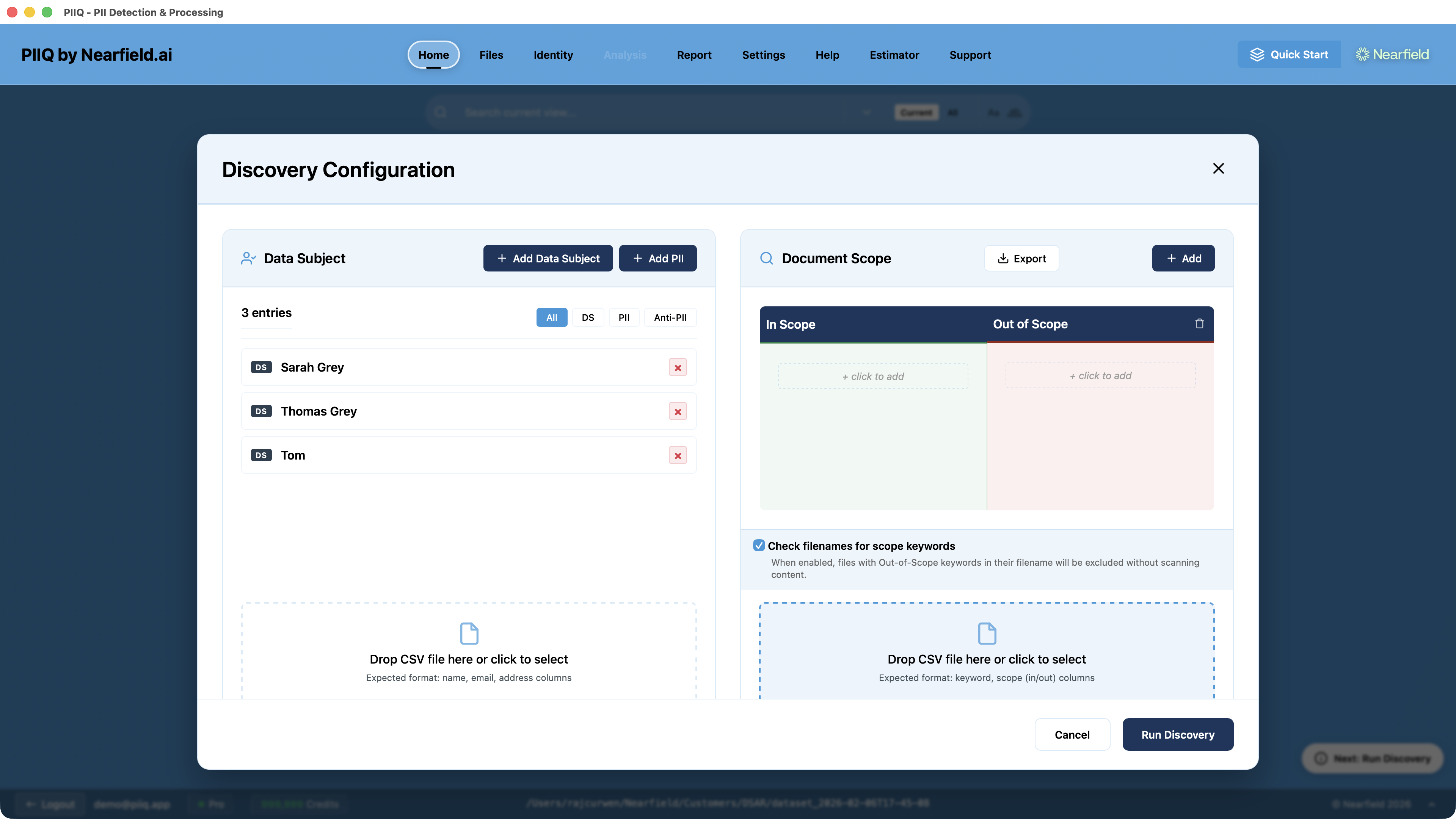
This alone is a significant optimisation. In a typical directory of a thousand files, perhaps only a third will actually reference the individual. By identifying those files up front, you avoid processing hundreds of irrelevant documents — saving time, cost, and effort.
But just because a file mentions the data subject doesn't automatically mean it should be disclosed.
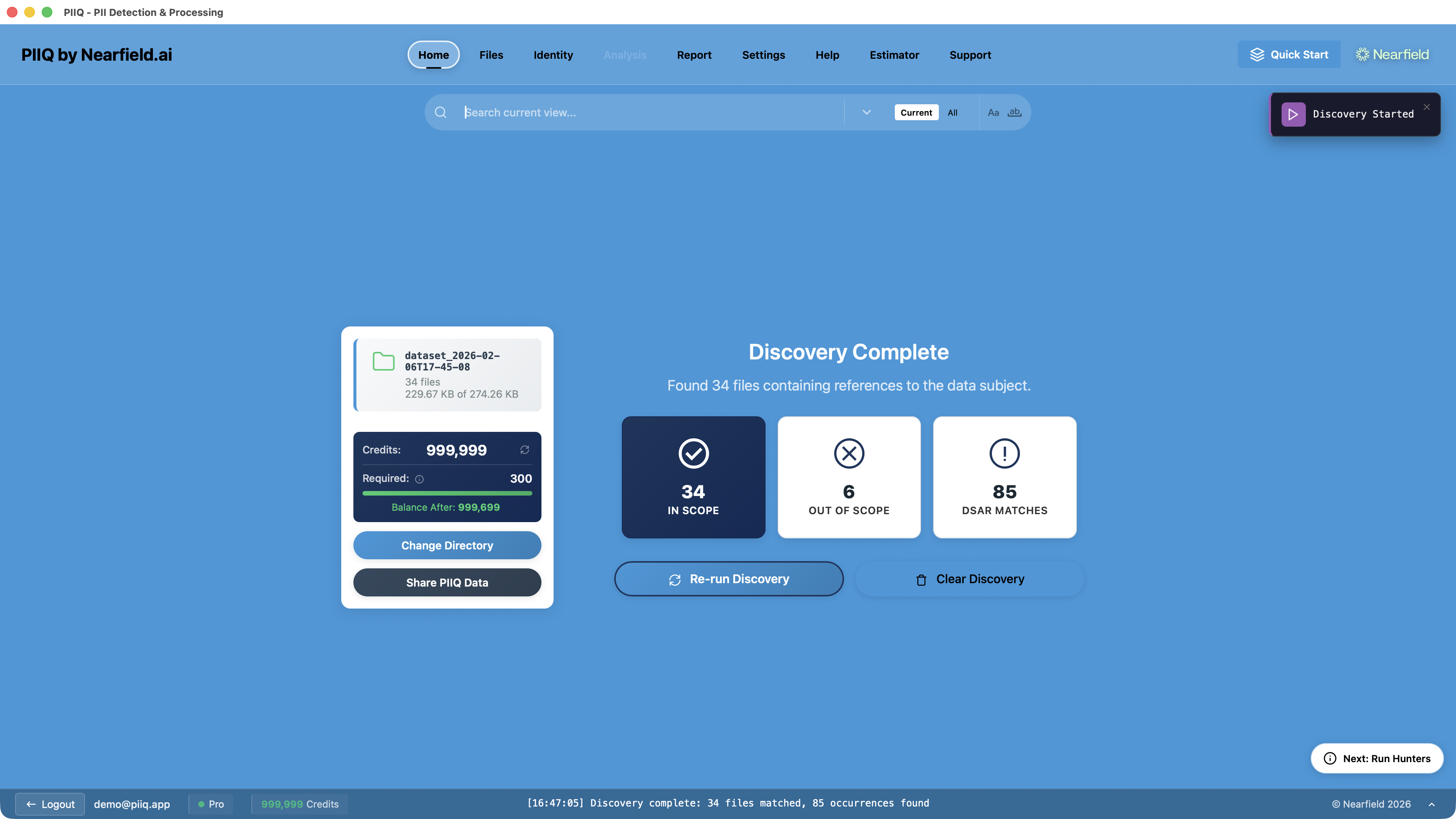
Document Scope: Filtering by Content Type
Imagine your Discovery scan finds the data subject's name in 200 files. Some are business contracts. Some are internal memos. Some are social media exports. And one is a document clearly marked as legally privileged.
Under most data protection frameworks, legally privileged communications are exempt from disclosure. Social media posts that happen to mention someone may not be relevant. Personal financial documents belonging to someone else shouldn't be included just because the subject's name appears in passing.
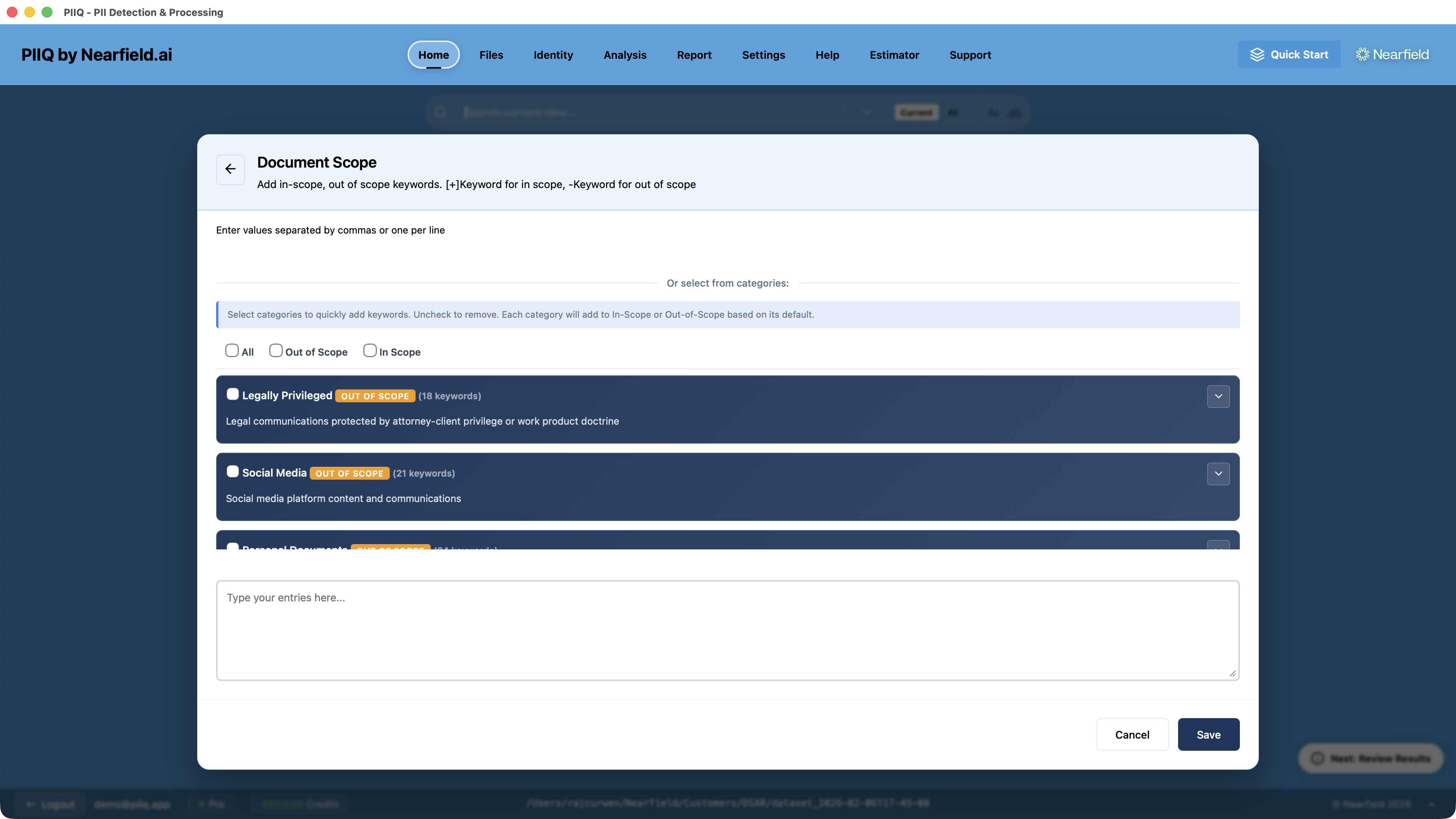
This is where Document Scope keywords come in. PIIQ lets you define two lists:
- In-Scope keywords identify document types you do want to process — terms like "business correspondence", "employee record", "customer inquiry", or "contract".
- Out-of-Scope keywords identify document types you want to exclude — terms like "attorney-client privilege", "personal", "social media", or "marketing campaign".
When a file's content matches an out-of-scope keyword, it's filtered out regardless of whether it mentions the data subject. The exclusion happens at the document level, before any PII detection or redaction takes place.
Standard Exclusions: Pre-Built Categories
Building keyword lists from scratch for every request would be tedious. That's why PIIQ ships with fourteen pre-configured Standard Exclusion categories, each containing curated keyword lists for common document types.
Typically Excluded (out-of-scope by default)
| Category | Examples |
|---|
| Legally Privileged | Attorney-client privilege, work product, legal advice, litigation, settlement agreements |
| Social Media | Facebook, Twitter, Instagram, LinkedIn, TikTok, and related terminology |
| Personal Documents | Medical records, private correspondence, family matters, shopping receipts |
| Job Hunting | Resumes, cover letters, job applications, recruiter correspondence |
| Marketing Materials | Campaigns, advertisements, promotional content, newsletters, SEO analytics |
| Personal Financial | Bank statements, credit cards, mortgages, tax returns, investment portfolios |
| Spam & Junk | Phishing attempts, unsolicited messages, obvious spam patterns |
Typically Included (in-scope by default)
| Category | Examples |
|---|
| Business Communications | Internal memos, meeting minutes, project updates, status reports |
| Contracts & Agreements | NDAs, employment agreements, service level agreements, terms and conditions |
| HR & Employee Records | Personnel files, performance reviews, payroll, benefits enrollment |
| Business Financial | Financial statements, balance sheets, invoices, audit reports |
| Technical Documentation | Specifications, architecture documents, API documentation, release notes |
| Customer Communications | Support tickets, customer inquiries, complaints, sales correspondence |
| Regulatory & Compliance | GDPR filings, HIPAA documentation, privacy policies, audit records |
Selecting a category applies all of its keywords in one click. You can then customise — adding or removing individual keywords as needed for your specific request.
Anti-PII: When a Name Isn't Personal Data
There's another category of exclusion that operates at a completely different level. Sometimes PIIQ's detection identifies something as personal data when, in your context, it isn't.
Consider a company called "James & Partners". "James" looks like a person's name. Or a product called "Alice" — the detection engine will flag it every time it appears. In a large document set, these false positives add up quickly.
Anti-PII entries solve this. By adding a value as Anti-PII, you tell PIIQ: "this matches the pattern of personal data, but don't treat it as such." The value won't be redacted, no matter how many times it appears. It's an exclusion that operates at the detection level rather than the document level.
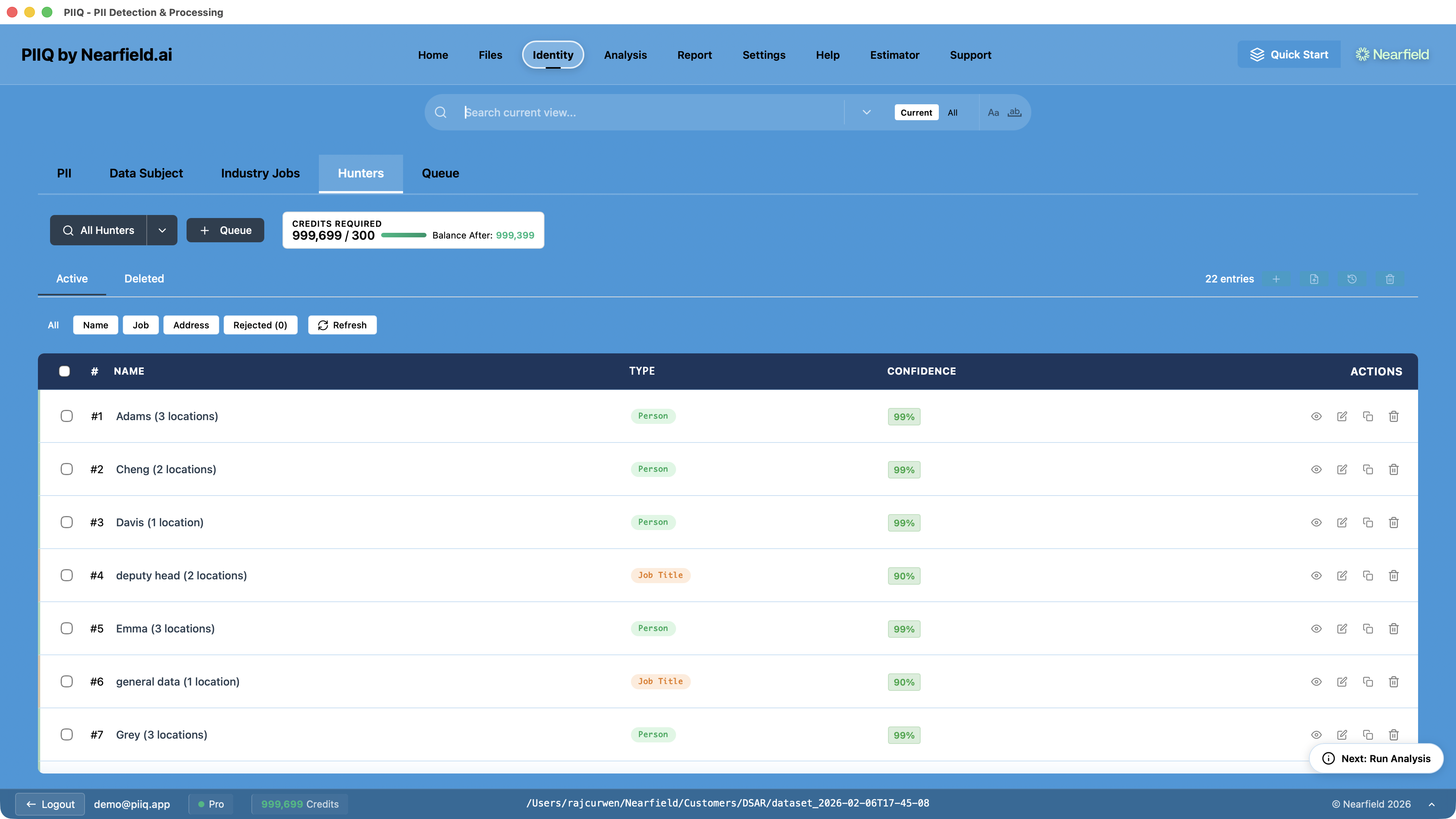
Hunters help you identify these cases. When you run Hunters, the results show every detected name, job title, and address with confidence scores — making it easy to spot false positives and add them as Anti-PII before analysis begins.
Manual Exclusions: The Human Override
Finally, there are cases where no automated rule captures what you need. A file passes every filter — it mentions the data subject, it matches in-scope keywords, it contains genuine PII — but for some specific reason, it shouldn't be disclosed.
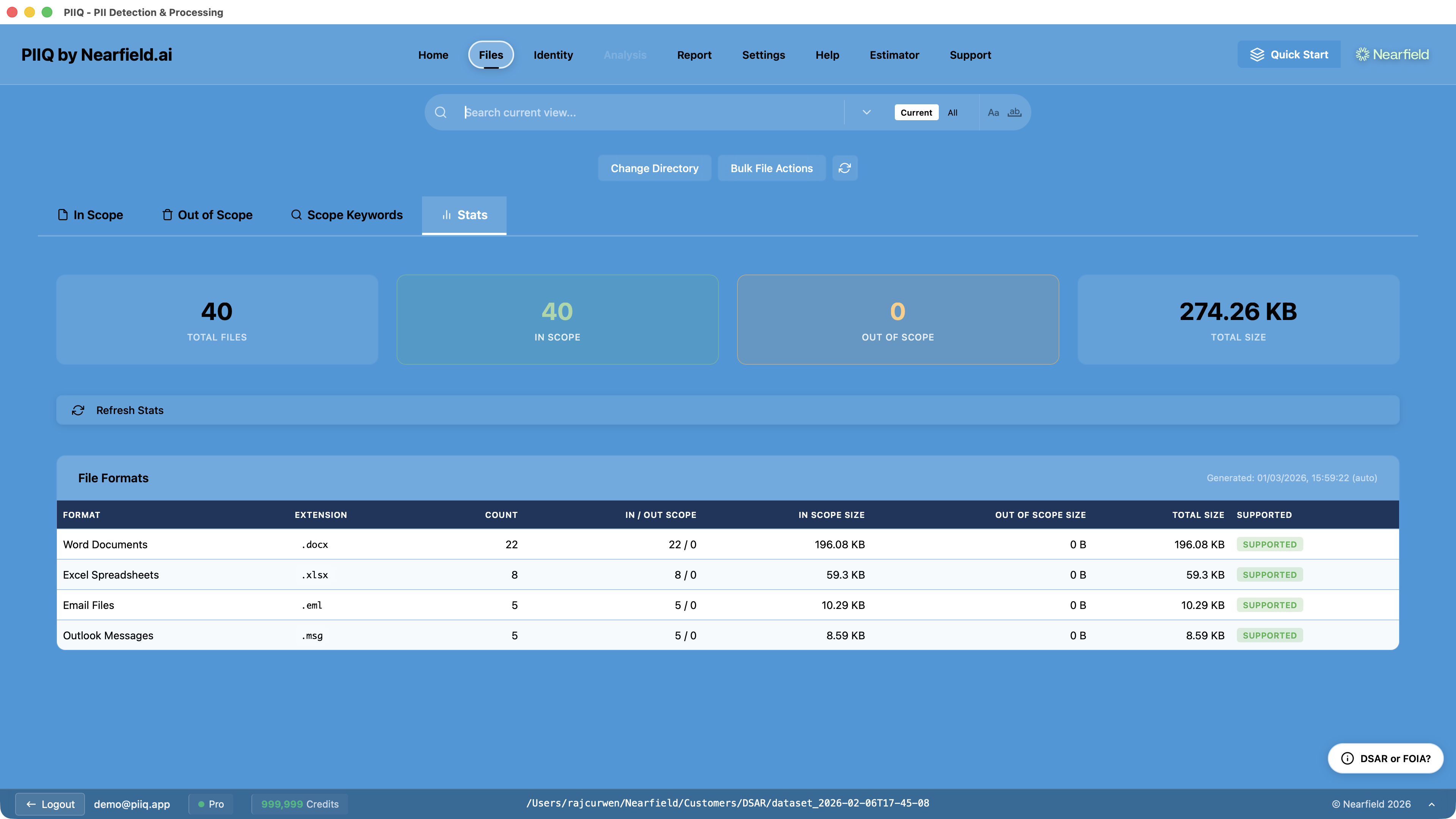
PIIQ's Out of Scope tab provides a manual override. Individual files can be moved out of scope with a reason recorded for audit purposes. This is the highest-priority exclusion — it overrides everything else. If a human decides a file shouldn't be processed, that decision stands.
How the Layers Work Together
These exclusion mechanisms aren't alternatives — they're layers that work in sequence:
- Discovery narrows the universe to files mentioning the data subject
- Document Scope filters those files by content type and category
- Anti-PII refines what counts as personal data within the remaining files
- Manual Exclusions provide a final human checkpoint
Each layer reduces the working set. A directory of a thousand files might narrow to 350 after Discovery, 200 after Document Scope filtering, with Anti-PII preventing dozens of false-positive redactions across those remaining documents.
Why This Matters
Processing a DSAR isn't just about finding every mention of a name and redacting everything else. It requires judgement about what's relevant, what's exempt, what's proportionate, and what's actually personal data in context.
The data subject triggers the search. But the exclusions shape the response.
Getting exclusions right means faster processing, lower costs, fewer false positives, and responses that are legally sound rather than just technically complete. It means not disclosing legally privileged material, not wasting resources on spam, and not redacting your client's product name three thousand times across a document set.
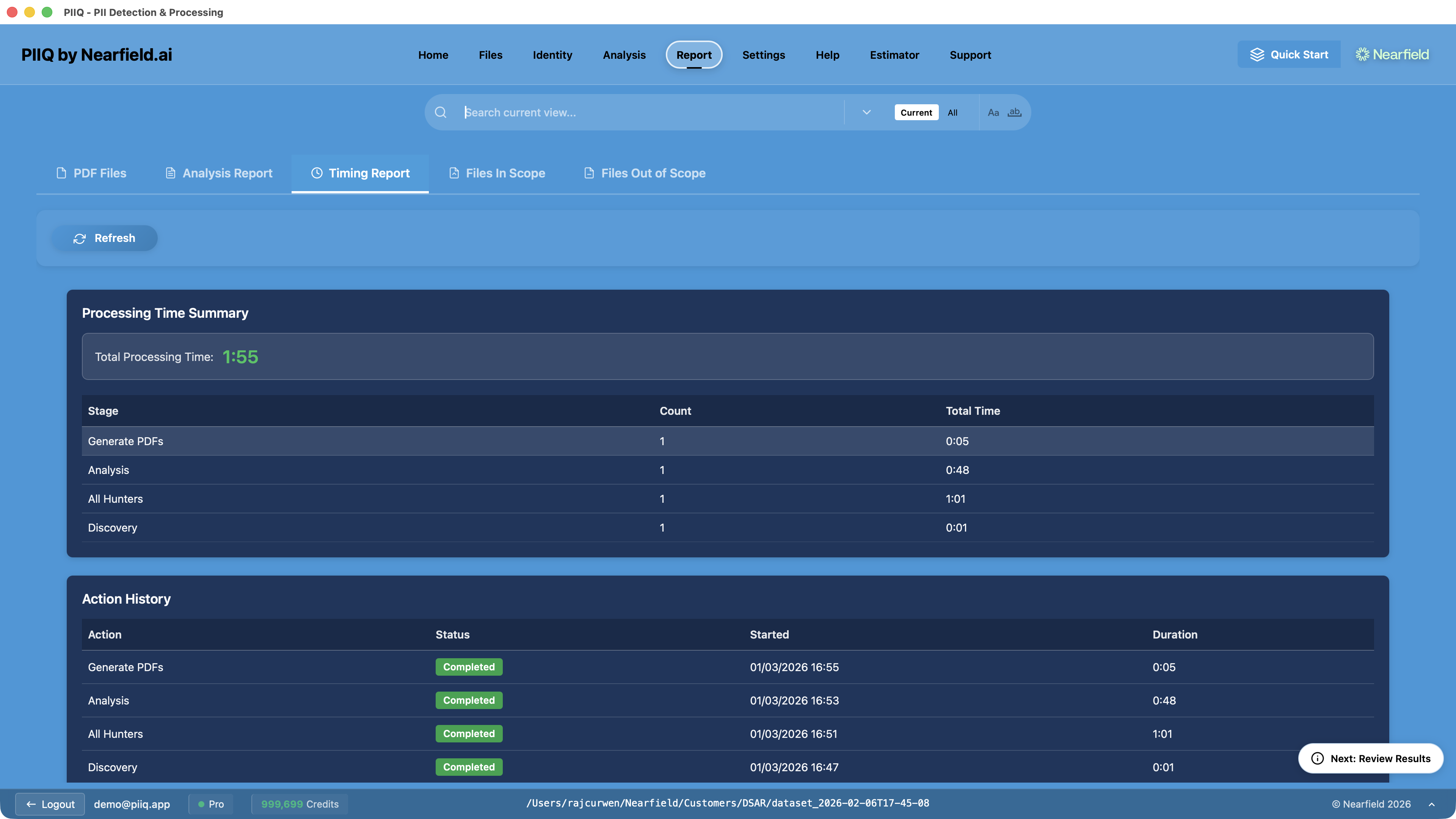
The timing report below shows the full processing pipeline — from Discovery through to PDF generation — completing in under two minutes. That speed is only possible because the exclusion layers have already done the heavy lifting.
Best Practice: Getting to the Right Document Set
The most effective DSAR responses come from methodically narrowing your document set before you spend a single credit on analysis. Here's the recommended workflow.
Step 1: Start broad, then scope with Standard Exclusions — Before you even enter a data subject name, apply the Standard Exclusion categories that fit your situation. Exclude Legally Privileged, Spam & Junk, and Marketing Materials first. This takes seconds and can eliminate entire classes of documents.
Step 2: Add your own scope keywords — Every organisation has its own document conventions. Add project code names, internal system names, or document prefixes as out-of-scope keywords.
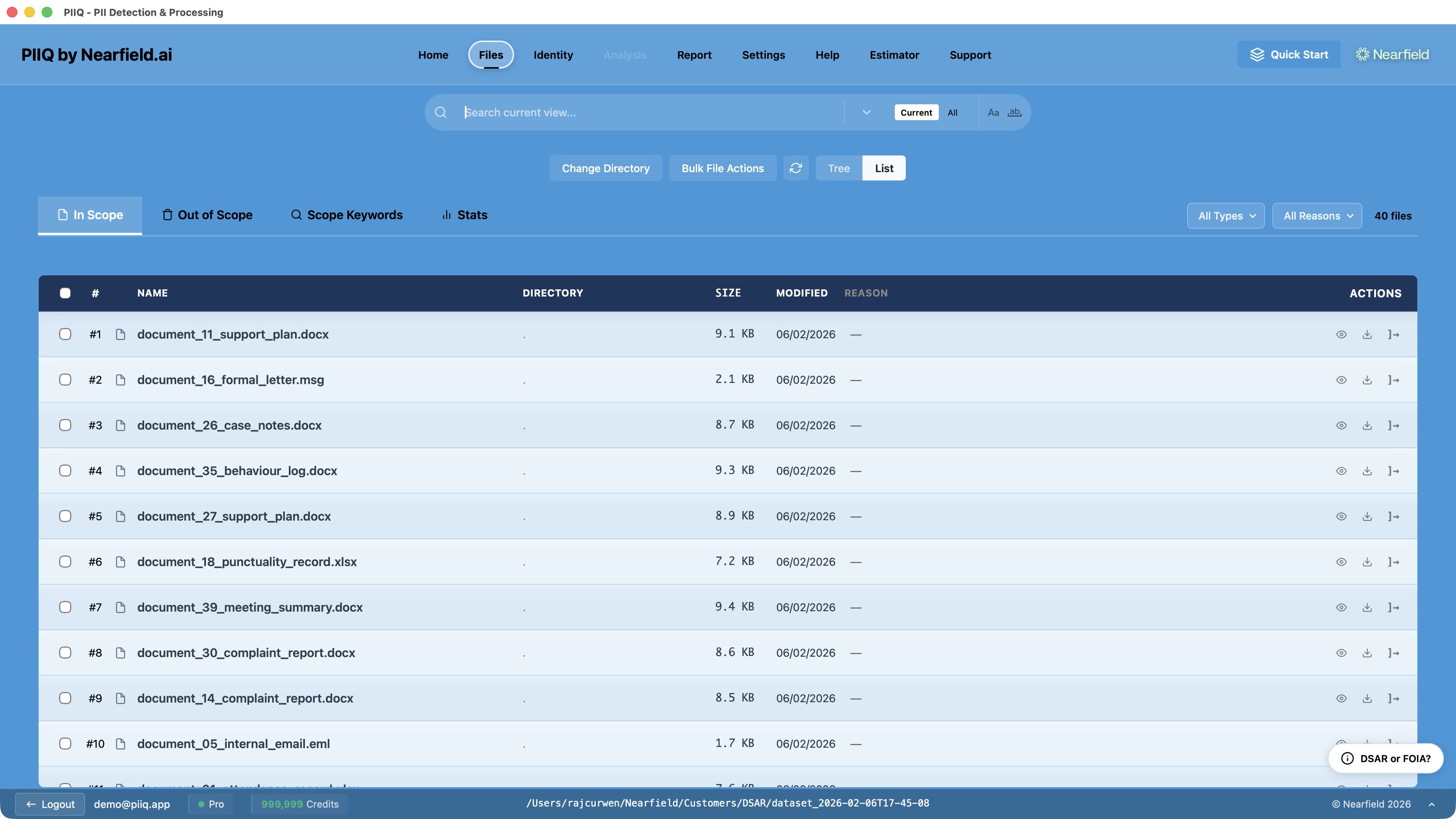
Step 3: Enable filename checking — Many organisations use naming conventions that immediately reveal document type. Files prefixed with "LEGAL_", folders named "Marketing_2024", spreadsheets called "spam_log.xlsx".
Step 4: Run Discovery with the data subject — With scope keywords in place, Discovery works on a pre-filtered set. The result is a focused list of active files.
Step 5: Review and use manual exclusions — Browse the active files. Move anything that slipped through to Out of Scope manually. Record your reason for the audit trail.
Step 6: Set up Anti-PII before analysis — Think about false positives specific to this document set. Company names, product names, building names, office locations that match surnames.
Step 7: Analyse the refined set — Only now run analysis. Your document set has been through four layers of filtering. The files you're analysing are the files that actually matter.
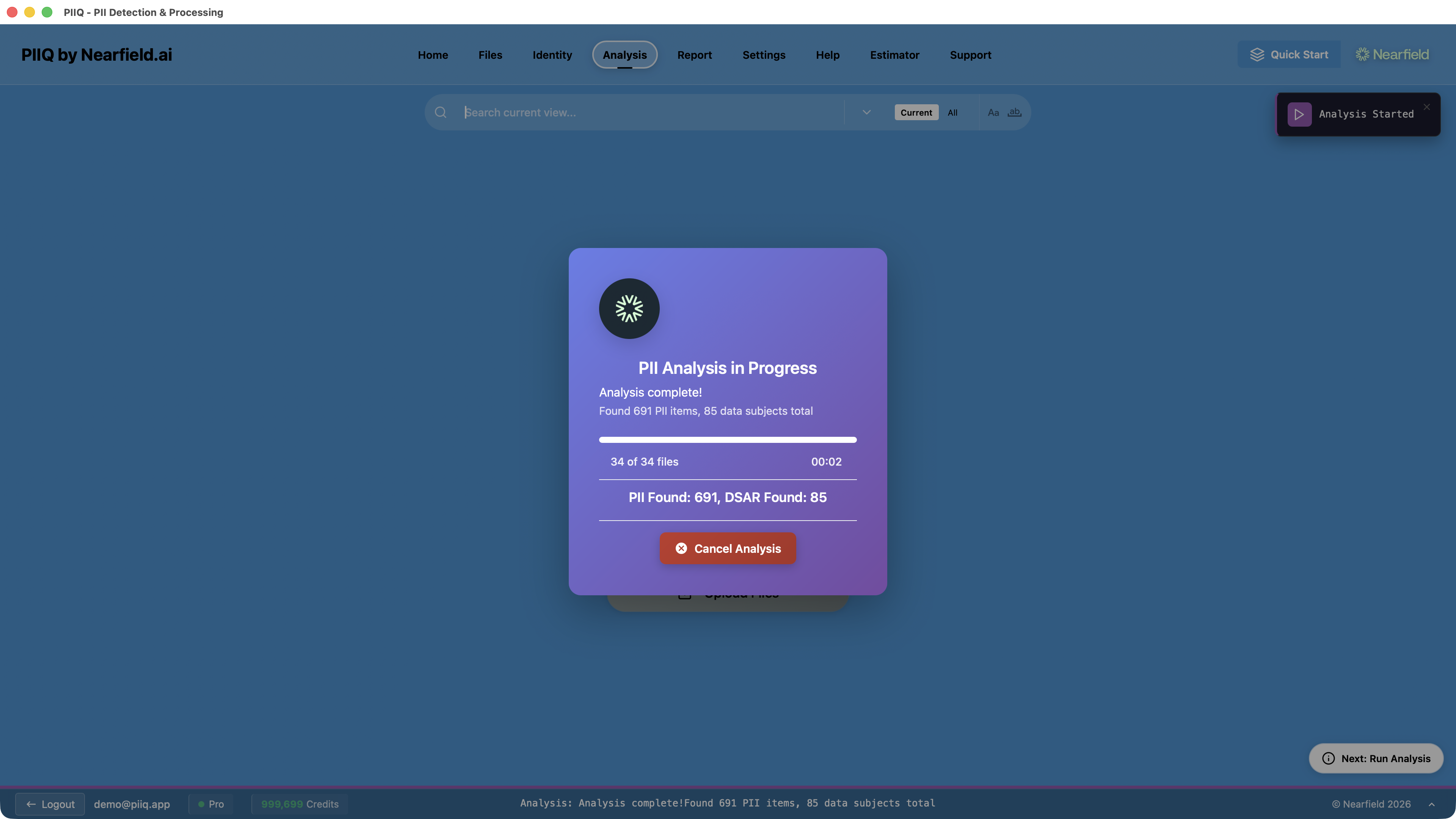
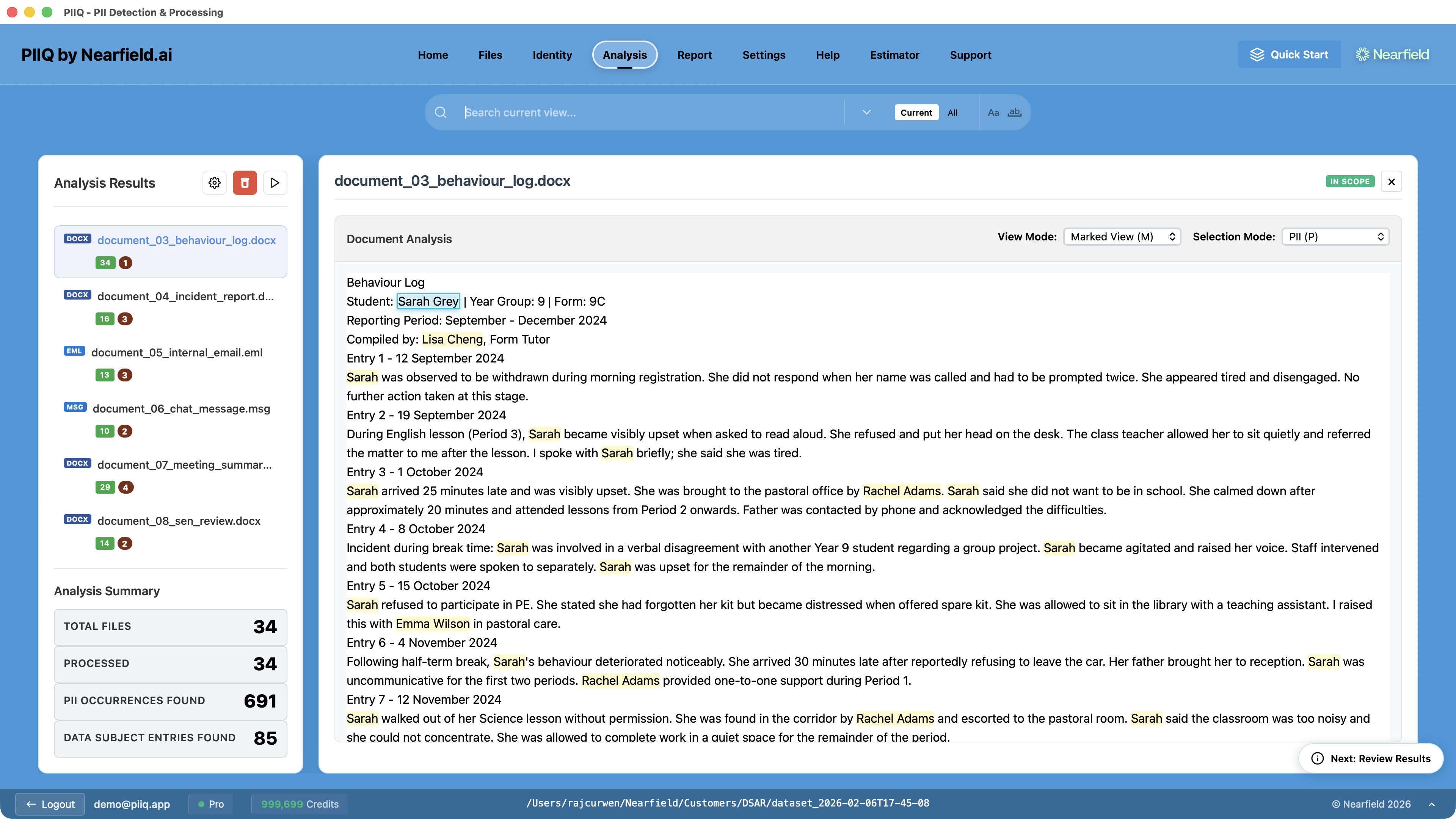
Review the results — PIIQ highlights every redaction in the analysis view, letting you verify accuracy across every document.
The goal isn't to process the most files. It's to process the right files. Use PIIQ's exclusion layers in order — broad categories first, then targeted keywords, then Discovery, then manual review — and you'll arrive at a document set you can be confident in before analysis even begins.